

Manage console admins
A Cutova account is what gets somebody into the console: to register instances, publish tools or manage users. Using an AI assistant against Epicor does not require one: a person with an Epicor login can authorise a client and call tools on their own.
Their Epicor permissions decide what they can see, either way. A Cutova role governs the console, not your ERP data.
Send an invitation
Section titled “Send an invitation”Open Users and click Invite User.
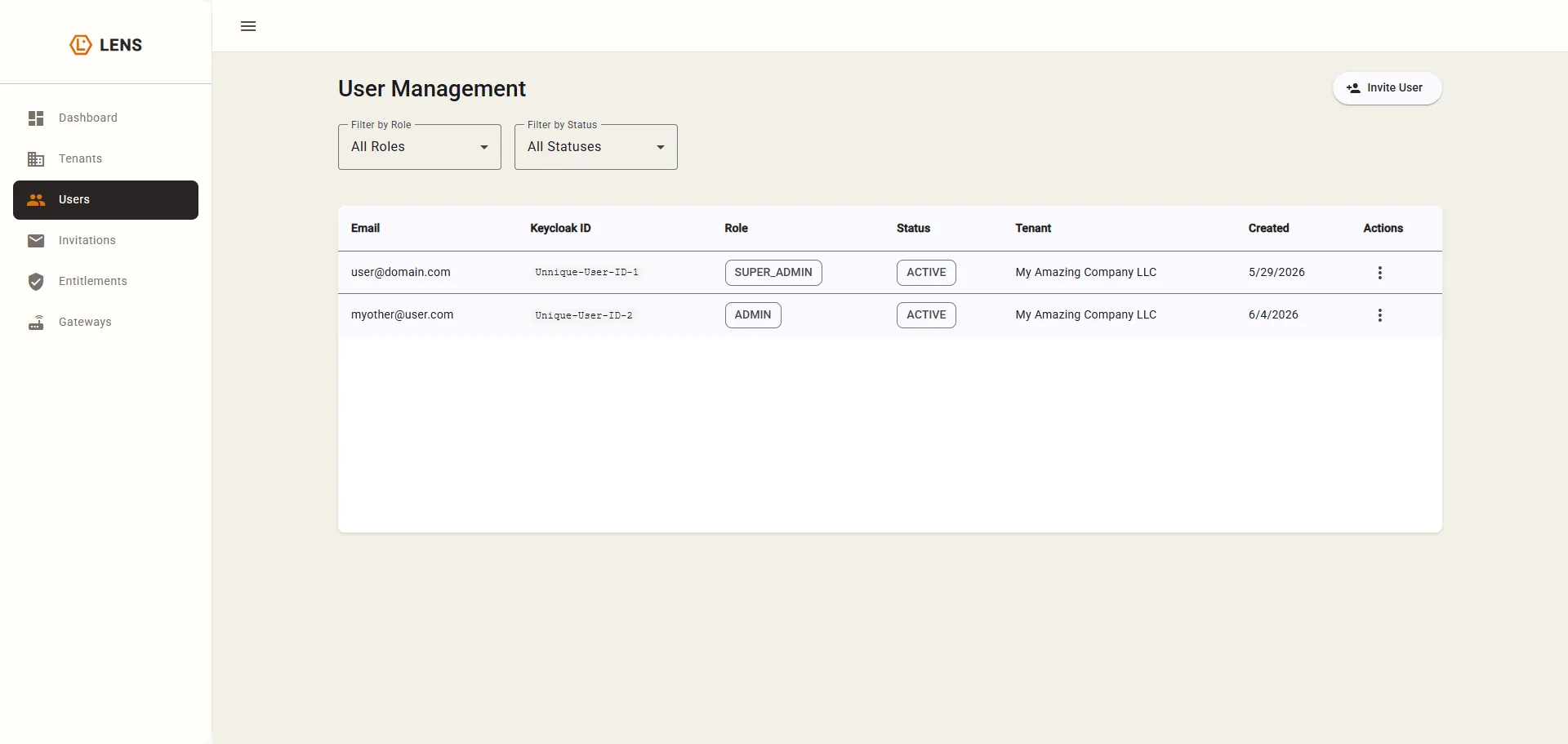
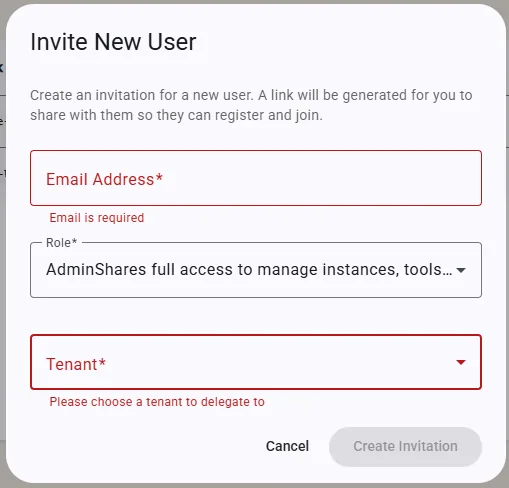
Enter their email, pick a role, and pick the tenant. Click Create Invitation.
Invitations expire in 72 hours
Section titled “Invitations expire in 72 hours”Track them on Invitations.
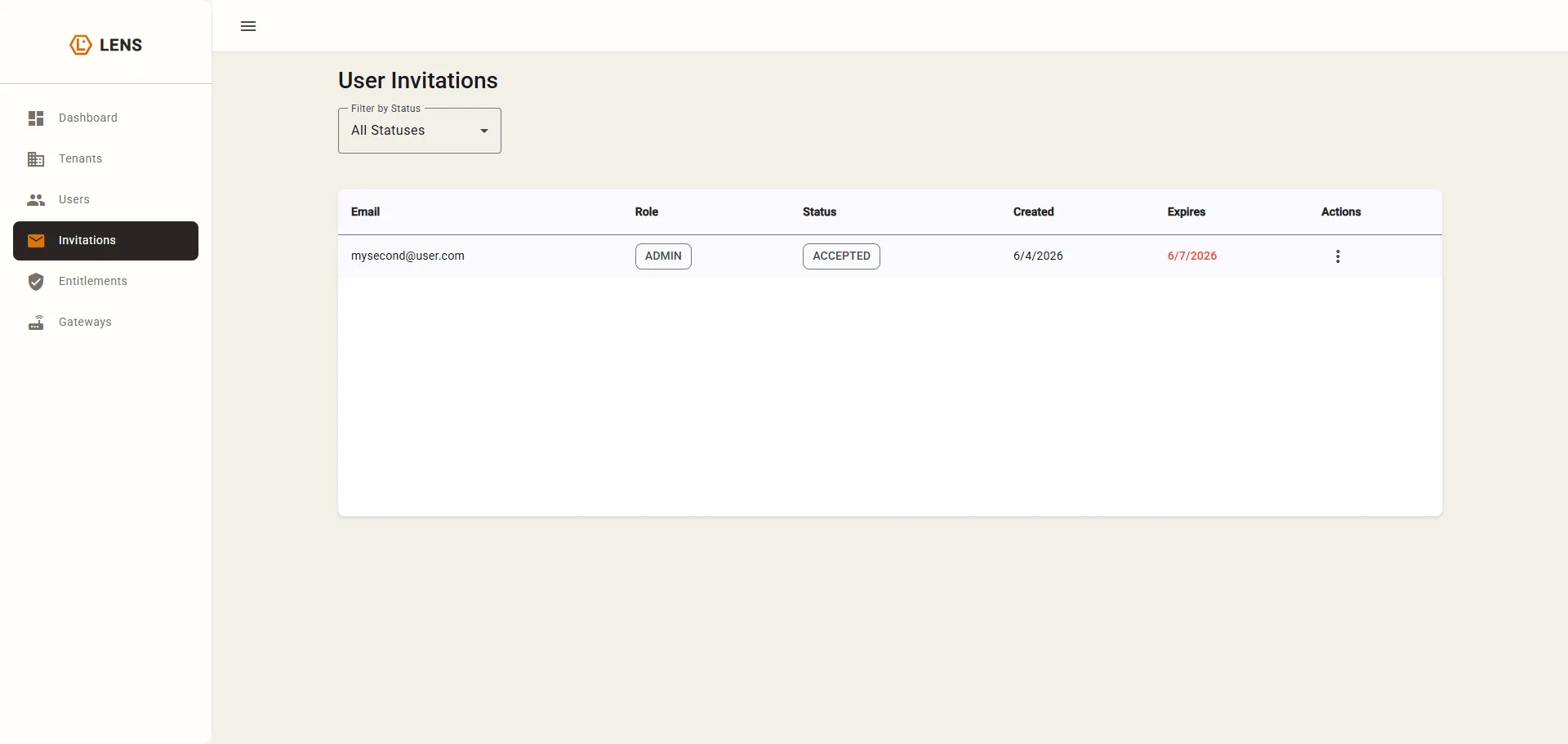
A red Expires date means it has already expired, not that it is close.
If an invitation has expired and the console disables Resend and Cancel, contact support to reset it. For an active invitation, Resend extends the link’s expiry; share the link with the recipient again.
Everyone you invite becomes an Admin
Section titled “Everyone you invite becomes an Admin”The invitation dialog offers one role: Admin. An Admin manages instances, tools, resources and users in your tenant.
There are other roles in the system, but the invitation flow does not offer them: they are marked deprecated in the console. So treat a Cutova invitation as “give this person the keys”, and invite only the people who will help run the setup.
What a new person does
Section titled “What a new person does”- Opens your link and registers.
- Signs in to the console.
- Connects their AI client: see Connect your AI client.
- Signs in with their own Epicor account when the client asks.
Each person authorizes their AI client with their own Epicor login. The administrator’s configured connection credentials are separate. See Credentials and data.
Next: Connect your AI client.
Epicor® and Kinetic® are trademarks of Epicor Software Corporation. Cutova is an independent product and is not affiliated with, endorsed by, or sponsored by Epicor Software Corporation.
Cutova, a product of Lens Software LLC