

Connect your AI client
Each person connects the AI client they use and signs in with their own Epicor account. If your organization already has an instance, you do not need to repeat its setup or create a console account.
What you need
Section titled “What you need”Your MCP URL. Get it from the instance page in the console, or ask your administrator. It looks like:
https://server.cutova.ai/mcp/YOURQUICKCODECopy it from the console rather than typing it. The host and the quick code are both specific to you. The transport is Streamable HTTP, not SSE. Some clients ask.
If your client only accepts one shared address
Section titled “If your client only accepts one shared address”Some AI clients list connectors from a catalog and do not let you paste your own URL. Those connect to the plain address, with no quick code in it:
https://server.cutova.ai/mcpSign-in then adds one step: Cutova asks for your quick code before sending you to Epicor. Same four characters, typed instead of pasted. Case does not matter. Everything after that is identical.
If you do not have your quick code, ask whoever set up Cutova for your organization. It is on the instance page in the console.
What signing in looks like
Section titled “What signing in looks like”The same three moments happen whichever AI client you use. Cutova sends you to your own Epicor server to sign in; your Epicor password is never typed into Cutova or into the AI client.
If you connected to the plain address above, one screen comes first: Cutova asks for your quick code. It is the only thing that page asks for.
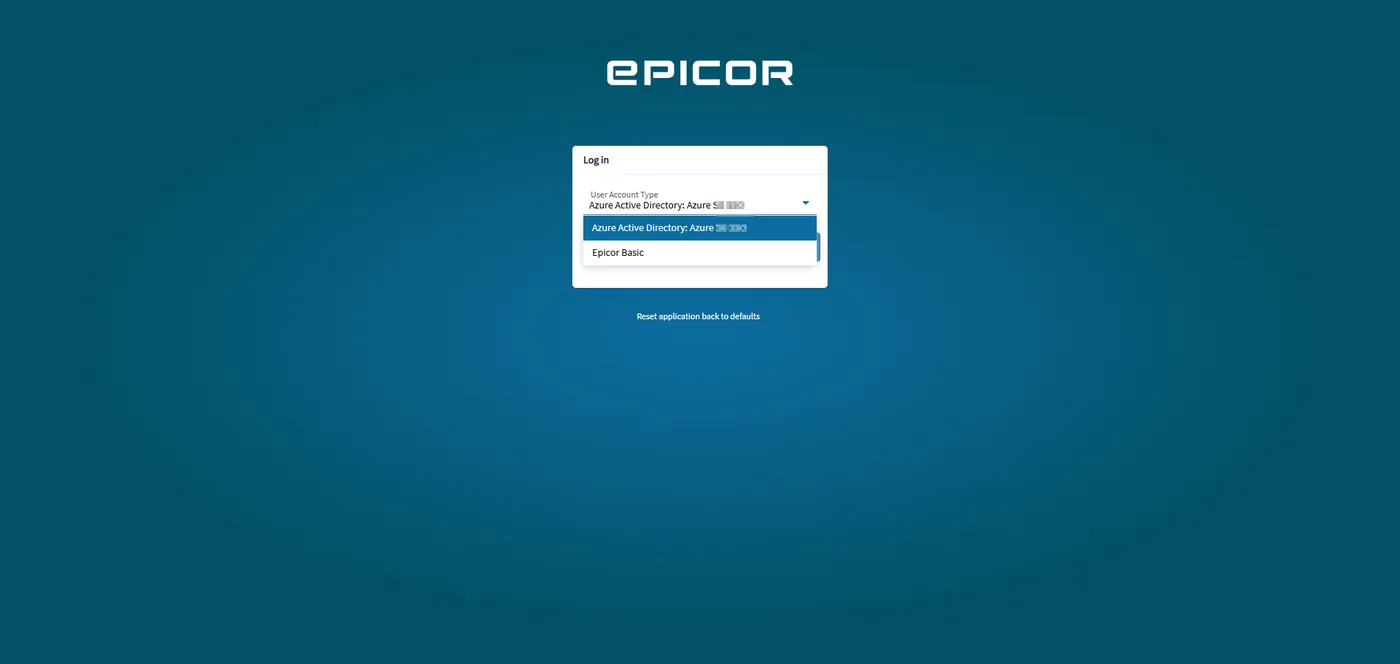
1. Epicor asks who you are. Your usual Epicor sign-in, with whatever account type your site uses.
2. Epicor asks whether to identify you to Cutova. This screen is served by your Epicor server, not by us. It says plainly that access is limited to your own Epicor permissions and that your password is not shared.
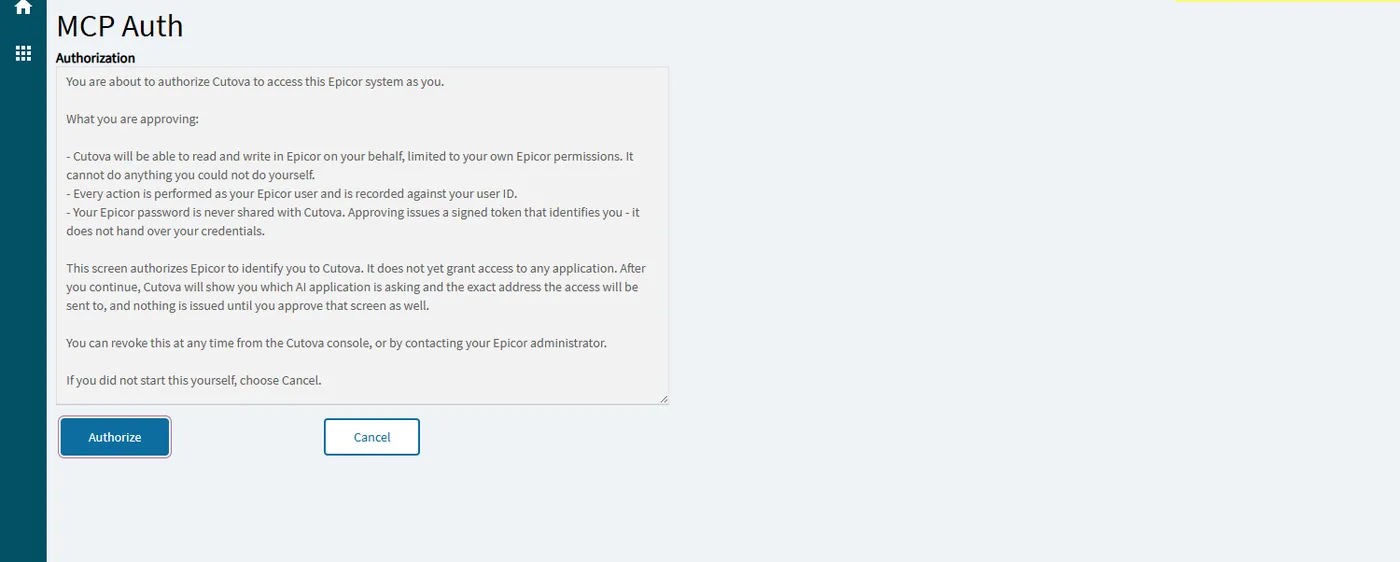
3. Cutova asks which AI client you are approving. Approving in Epicor identifies you; it does not yet grant access to anything. The Cutova consent screen names the client and the exact address the access will be sent to. Nothing is issued until you approve that too.
Two approvals the first time, in that order. Either one refused means no access. Cutova remembers the approval for that client and that address, so a later connection from the same client to the same address goes straight through. A different client, or the same client sending access somewhere else, asks again.
Your administrator can revoke your access at any time, from Users on the Epicor instance in the Cutova console. Your AI applications stop working straight away, and any open session closes. To get access back, sign in again and approve both screens.
Claude
Section titled “Claude”ChatGPT
Section titled “ChatGPT”LibreChat
Section titled “LibreChat”Open the LibreChat setup guide.
Microsoft Copilot Studio
Section titled “Microsoft Copilot Studio”Open the Microsoft Copilot Studio setup guide.
VS Code
Section titled “VS Code”Use VS Code with GitHub Copilot.
Another client
Section titled “Another client”Epicor® and Kinetic® are trademarks of Epicor Software Corporation. Cutova is an independent product and is not affiliated with, endorsed by, or sponsored by Epicor Software Corporation.
Cutova, a product of Lens Software LLC